Password
Use a password to open the protected area.
Encrypt data drives, partitions, USB sticks and containers. Keep private areas locked separately, even while Windows is running.
30-day limited trial
Buy once. Use it for life on one computer. Renew support and upgrade rights each year.
Volkswagen Financial Services chose DriveCrypt after research showed its laptop-disk solution did not offer the same protection for USB sticks. David Hawkins, IT Support Manager, praised its ease of use, choice of algorithms, password prompt when a USB stick is inserted, reliability and SecurStar’s service.
 David Hawkins · IT Support Manager, Volkswagen Financial Services (UK) Ltd.
Depending on your setup, unlock your area with a password alone or add a second access key.
Use a password to open the protected area.
Combine your password with a key file: the keyfile.
Add a compatible USB token as a physical access key.
DriveCrypt encrypts and decrypts data automatically in the background. Work with your files as usual, without changing your normal workflow.
Data in the protected DriveCrypt area is stored encrypted on the disk, partition, in the container or on a USB stick.
DriveCrypt decrypts the data needed in real time in memory. Windows and your application make it available there while you work.
Before changed data is written to storage, DriveCrypt automatically encrypts it again.
The encrypted DriveCrypt area remains protected and cannot simply be read on another computer without valid credentials. For a container, this applies to the container file; for an encrypted partition, it applies to the protected partition.
While a protected area is open, Windows and authorised applications can access its data. Decryption in memory is what allows you to work with the files normally.The wizard guides you through setup. Your encrypted container appears as a drive: open, edit and save your files as usual.
Even while Windows is running, your private containers stay locked until you unlock them. Ideal for photos, finances and confidential projects on a shared PC.
An encrypted system drive protects a powered-off computer. Add separately lockable data areas, encrypted external storage and ways to conceal sensitive content.
Create a visible area with prepared data and an additional hidden area inside it. The outer password opens the visible area; a second password opens your confidential data. Without that second password, the hidden area cannot be detected — plausible deniability.
Conceal a complete encrypted volume inside a suitable WAV audio file, and open it as a drive when you need to work.
Configure a USB stick as a crypto token and use it to unlock and lock your containers and partitions.
There is no need to compare encryption algorithms. Use the wizard’s recommended settings. DriveCrypt automatically encrypts files as you save them and decrypts them as you read them.
Choose an encrypted container, data partition or USB device. The setup wizard guides you through the steps.
Use your password or a configured token to unlock your files. They appear as a drive.
Open, edit and save files as usual. Lock the drive when you are done to protect its contents again.
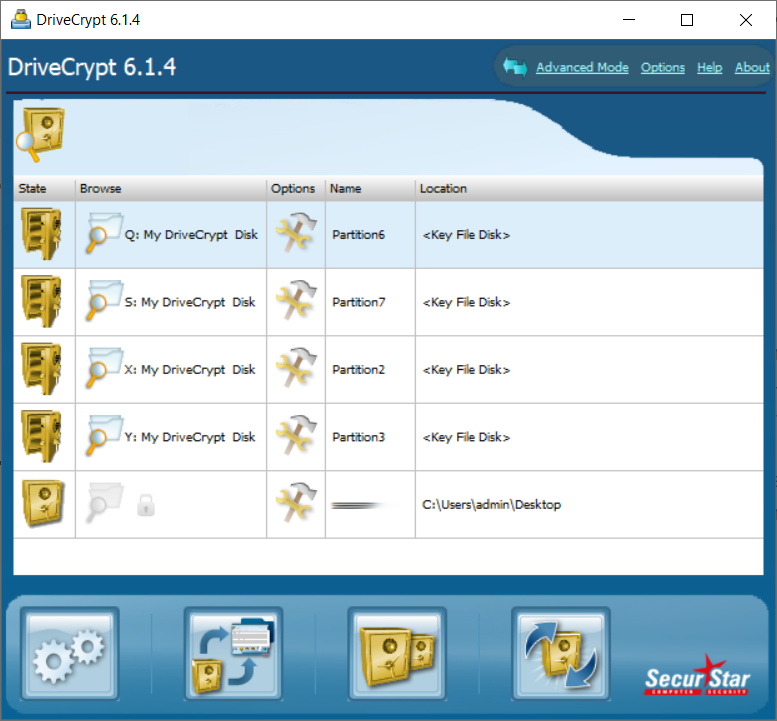
A clear, simple interface with recommended settings already selected. Create, open and close containers and protected areas without having to choose every technical option first.
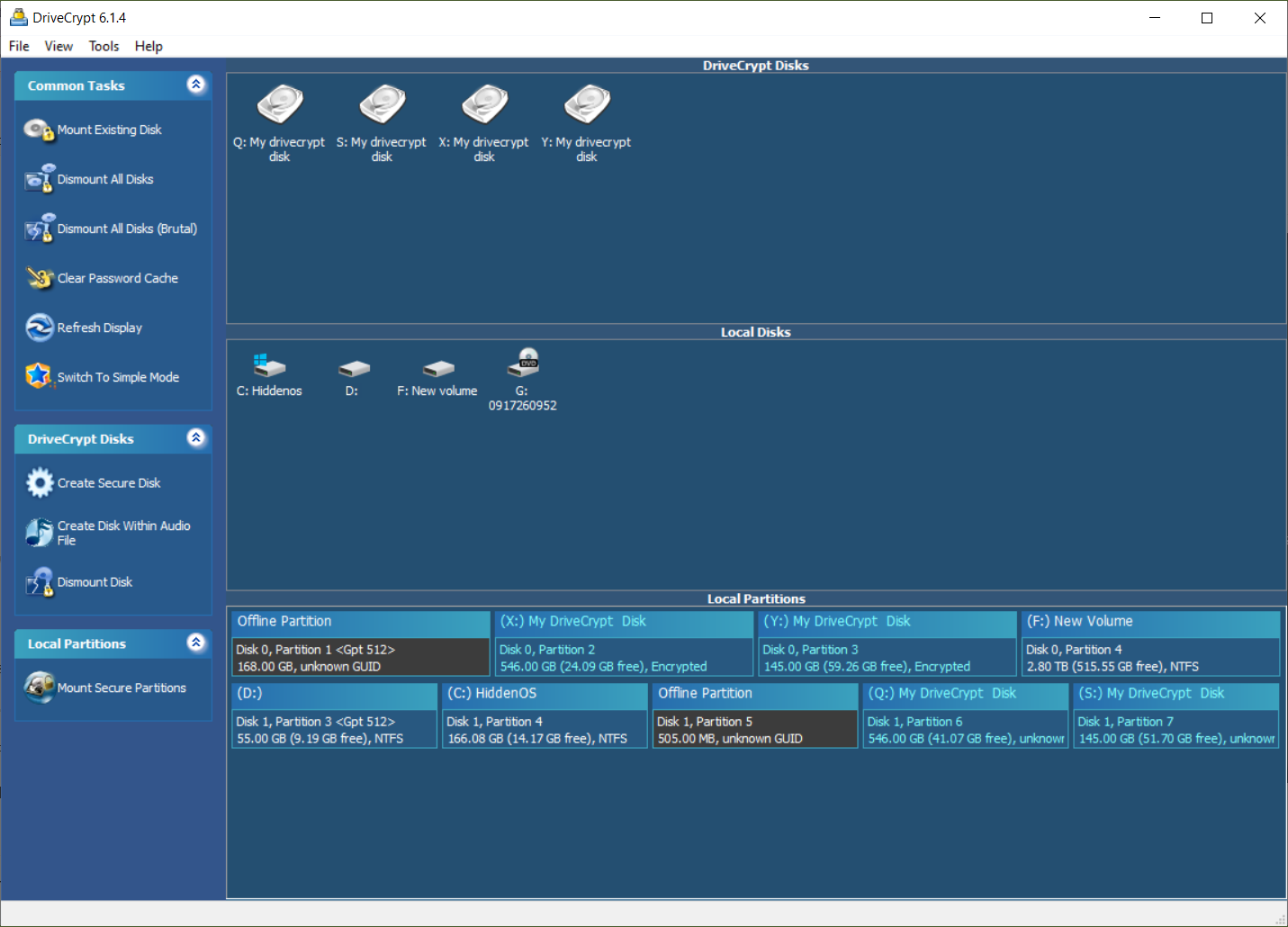
Open the advanced settings when you want to configure encryption options and additional features yourself, such as algorithms, tokens or scripts.
DriveCrypt is available in German, English, Italian and Portuguese.
If you have questions about DriveCrypt, you can contact SecurStar support directly. Use the support area for licence-related requests.
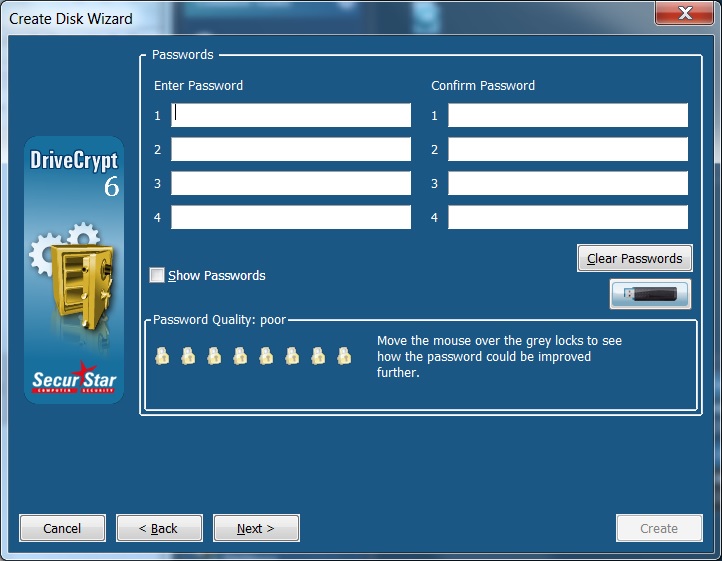
Contact support →Strong encryption needs strong credentials. DriveCrypt supports up to four password lines for a container or partition, entered in the same order when unlocking it. The password-quality indicator helps you choose.
Easy to use every day, flexible when you need more: additional protection features, hardware tokens and an integrated scripting language.
The optional Red Screen password-entry mode bypasses normal Windows input dialogs and is designed to hinder certain forms of password interception.
Connect supported PKCS#11-compatible security tokens through their driver library and store keyfiles on the token. Designed to fit existing token infrastructures.
Create, mount and dismount containers and partitions with scripts. Run recurring tasks through the integrated script console or .dclua files, including command-line execution.
Additional keyfiles grant access without sharing the volume password. Set an expiry date and permitted hours, and revoke keyfile access when needed.
Use Traveller mode to open containers on other suitable Windows computers without a permanent DriveCrypt installation. Prepare it using the full version and carry it on removable storage.
Dismount data areas after configurable inactivity, use hotkeys for common actions and lock the console when needed. Fewer repetitive steps in daily use.
PKCS#11 support depends on the token and a correctly implemented PKCS#11 driver library. A normal USB drive holding a keyfile is not a PKCS#11 security token.
Scripting: integrated Lua 5.1 engine with DriveCrypt extensions; run scripts through the console, .dclua files or the -script parameter.
Red Screen adds password-entry protection against certain keyloggers. It does not provide general protection against all malware; consult the manual for keyboard-layout and usage requirements.
Traveller mode opens containers on suitable Windows systems; the portable edition does not open encrypted partitions. Required system and access permissions still apply.
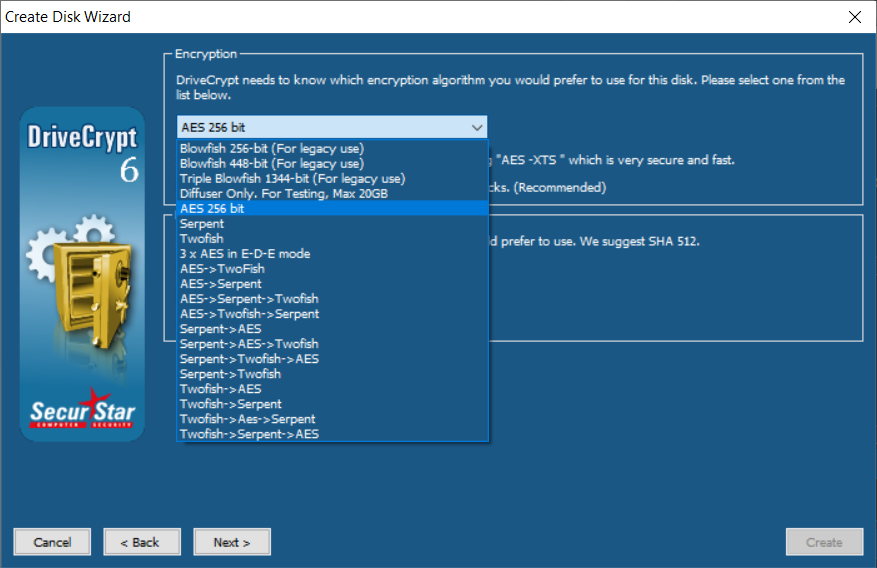
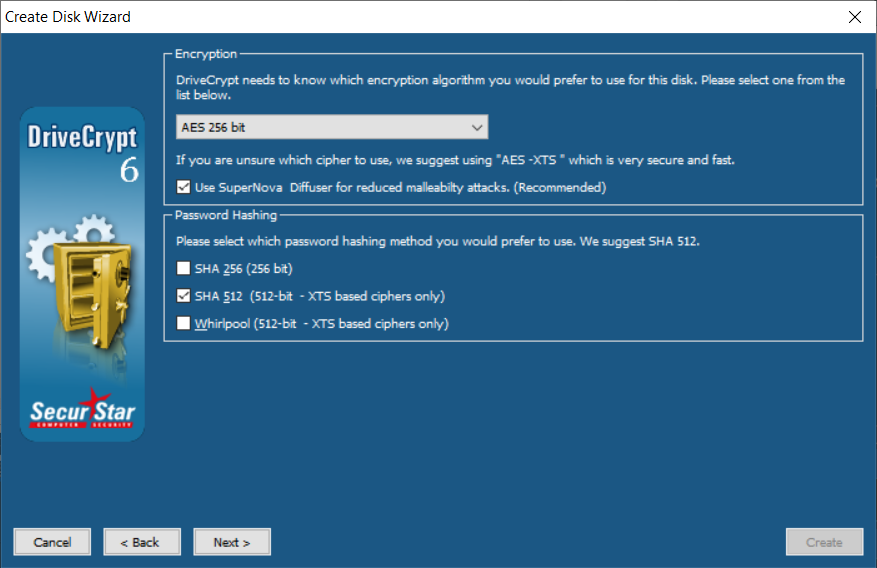
Choose AES, Serpent or Twofish in XTS mode, individually or in a cascade. Each cipher in a cascade uses its own keys. AES hardware support accelerates encryption on compatible processors.
The optional SuperNova Diffuser processes each 512-byte data block with its own key before encryption. After decryption, the diffusion is reversed. Changes spread across the entire block, making certain targeted manipulation attacks harder.
Explore the technical options →Use the recommended settings to get started. For specific requirements, choose your own cipher or combine several algorithms.
Up to 1344-bit key length with Triple Blowfish.
SHA-256, SHA-512 and Whirlpool. SHA-512 and Whirlpool are available for XTS-based ciphers.
The hash choice is one part of password processing. Resistance to password guessing also depends on the password and the specific key derivation.
Additional protection against targeted data manipulation: SecurStar’s SuperNova Diffuser spreads changes across an entire 512-byte data segment, enhancing protection against malleability attacks. It uses hardware acceleration on supported processors.
The 4,096 bits describe the data segment size, not an additional key length. Diffusion is not cryptographic integrity verification.
Choose the appropriate cipher and combine it with SuperNova for additional protection when needed.
For Windows 11 and older Windows systems. DriveCrypt 6 opens containers from every previous DriveCrypt version, right back to the first. It also opens ScramDisk, E4M and TrueCrypt containers.
DriveCrypt grew out of the development history of ScramDisk and E4M. In 2001, their developers joined forces with security expert Wilfried Hafner and engineer Pompeo Busnello to establish SecurStar.
Compatibility & details ↓DriveCrypt Plus Pack encrypts your operating system and protects your powered-off computer. DriveCrypt adds protection during everyday use: after Windows starts, your private areas stay locked until you choose to unlock them.
| Windows | Current version for Windows 11. Other supported systems: Windows 10, 8.x, 7 and Windows Server 2003/2008/2012. |
|---|---|
| Cryptography | AES-256, Serpent, Twofish and cascades; Blowfish 256/448-bit and Triple Blowfish with a key length of up to 1344 bits. |
| Storage | Containers, data partitions, GPT drives, external disks, USB; encrypted data on CD/DVD as well. |
| Additional authentication | Configure USB sticks as crypto tokens; use tokens to unlock and lock encrypted containers and partitions. Compatible smartcards and fingerprint readers are optional. |
| Trial | 30-day limited trial. |
| Password hashing | SHA-256, SHA-512 and Whirlpool; SHA-512/Whirlpool for XTS-based ciphers. |
| Format compatibility | Every previous DriveCrypt version from the first release; also ScramDisk, E4M (Encryption for the Masses) and TrueCrypt. |
| SuperNova Diffuser | In-house diffuser technology for enhanced protection against malleability attacks; processing in 512-byte data segments. |
When the destruction password is entered, DriveCrypt irreversibly destroys the protected container or partition it applies to. The data stored there cannot be recovered.
DriveCrypt containers have no file header that directly identifies them as DriveCrypt containers. Changing the file extension alone therefore does not reveal that a file is a DriveCrypt container.
Container files, complete data partitions and unpartitioned drives, to suit your storage layout.
Your purchased software licence remains valid for one computer and does not expire. Support and upgrade entitlements are valid for one year and can be renewed. We recommend keeping them current so you continue to receive support and upgrades.
Depending on the configuration, unlock a protected area with a password alone or combine the password with a keyfile or USB token. Organisations can also set up restricted user access and a master access method.
Encrypt USB sticks and external drives. Depending on the configuration, a USB token can also serve as an additional access method for protected areas.
Expand or shrink containers. DriveCrypt 6 offers optimised resizing for NTFS containers.
Mount and dismount drives with hotkeys. Lock the console manually or after inactivity.
Overwrite free space on suitable storage devices as an additional function alongside encryption.
Yes. Easy Mode guides you step by step through creating a protected area, with recommended settings so you do not have to make every technical choice yourself. You can get started without first learning encryption terminology. When you want more control, switch to Advanced Mode and adjust the settings yourself.
Yes. Your encrypted areas stay locked until you open them. DriveCrypt makes the selected data available while you work and encrypts changes again as they are saved, so you can use your files in the usual way. Once you close the area, its contents are locked from applications and other users.
Use the 30-day limited trial to get familiar with DriveCrypt and see whether it fits the way you work. Try the setup process and the protection features that matter to you before deciding to buy. The trial is available through the download area.
DriveCrypt protects private data areas and storage devices. DriveCrypt Plus Pack is designed to encrypt the Windows operating system. Together, the products cover both needs: Plus Pack protects the system, while DriveCrypt secures additional areas, containers and removable storage. DriveCrypt is compatible with Windows 11.
Choose what you want to protect: DriveCrypt creates encrypted containers, protects partitions and hard drives, and secures USB sticks and external storage. For another layer of discretion, you can conceal an encrypted area inside a suitable WAV audio file. This gives you the choice between a separate private workspace and protecting entire storage devices.
Choose an access method to suit your security needs: a password may be sufficient, or you can combine it with a keyfile or USB token. A keyfile is a file that acts as an additional access key. With these combinations, an unauthorised person may need more than just the password to open the protected area.
The software licence is a lifetime licence for one computer and does not expire. You can continue using the version you purchased. Support and upgrade rights are separate: they last for one year and can be renewed so you continue to receive assistance and new versions.
Plausible deniability means a hidden container can be created inside an outer container or partition. The outer password opens the visible area and the data stored there; a different password opens the confidential hidden area. If you are pressured to reveal a password, you can provide the outer password while keeping the confidential data in the hidden area.
Yes. If you need help with installation, setup or everyday use, you can contact SecurStar support directly. You are not left to solve technical questions on your own; our team understands encryption and DriveCrypt. Support and upgrade rights last one year and can be renewed separately from the lifetime software licence.
Short answer: Under this model, the expected average search takes about 4,867 years. A complete search through all 19 DriveCrypt options takes about 4,871 years.
Assumptions: Triple Blowfish with three keys of up to 448 bits each gives a key space of 21,344 possible key combinations. The model assumes 1,000 computers, each checking one billion keys per second—a combined rate of 1,000 billion checks per second. Computing power increases by 20% each year in the model; historically, performance gains have ranged roughly from 10% to 20%, depending on the period and metric.
How to check the calculation: One billion checks per second on 1,000 computers equals 1012 checks per second. That is about 3.16 × 10¹⁹ checks in the first year. With computing power growing by 20% each year, cumulative work after t years is approximately 3.16 × 1019 × (1.2t − 1) ÷ 0.2. A complete search of one 1,344-bit key space therefore takes about 4,855 years.
Why do the 19 options not multiply the calendar time by 19? At constant performance, 19 equally sized options would require 19 times the work. In this model, however, computing power keeps growing each year. A complete search through all 19 options therefore takes about 4,871 years—around 16 years more than a complete search of one option. If each option is equally likely and keys are checked evenly, the expected average is about 4,867 years.
These figures are a theoretical model using an assumed checking rate, not a benchmark for a specific computer or a measured DriveCrypt implementation. The added obstacles—first detecting that data is hidden and then identifying the correct option—and DriveCrypt’s built-in anti-brute-force mechanisms are not included. DriveCrypt also slows automated password attempts. A weak or reused password can still be guessed faster.
DriveCrypt has not been cracked to date. Over the past 20 years, SecurStar has offered more than €100,000 in total prize money for successful attacks on DriveCrypt; no successful proof has been submitted. This reflects our commitment to strong encryption and continuous development. As with any security software, you should also choose a strong, unique password and keep your access credentials safe.
No. DriveCrypt contains no backdoor for SecurStar or government authorities. SecurStar was founded in Germany because we want to provide strong encryption without government-mandated backdoors. Germany supports strong encryption, which fits our commitment to protect customer data without compromise. An additional master access method exists only if you configure it yourself in advance. Keep your password and, where applicable, keyfile or token safe: without valid credentials, an encrypted area cannot be opened.
BitLocker is a straightforward way to encrypt an entire drive. DriveCrypt gives you more flexibility for selected data areas: encrypt containers, partitions, data drives and USB sticks; unlock and lock protected areas whenever you need to; and conceal data, including in hidden containers or suitable WAV audio files. Even after Windows starts, your DriveCrypt areas stay locked until you open them. DriveCrypt Plus Pack encrypts the entire computer, including the operating system, and protects startup with authentication before Windows loads. If you want straightforward full-drive encryption, BitLocker is a direct option. If you want more control and additional privacy features, DriveCrypt Plus Pack is an alternative. Combining DriveCrypt Plus Pack with DriveCrypt protects the entire computer while keeping selected private areas separately locked after you sign in to Windows.
On many personal Windows devices, the BitLocker recovery key is backed up to the Microsoft account. The account holder can retrieve it there; under certain circumstances, stored account data may also be accessible to Microsoft or government authorities. For work or school devices, the organisation’s IT department often manages the key. With DriveCrypt and DriveCrypt Plus Pack, no key is sent to Microsoft or SecurStar or stored in a cloud account. You keep control of your access credentials. SecurStar cannot open your encrypted data and has no backdoor.
A keyfile is a specially created key file that lets another authorised user open an encrypted area without you sharing your own volume password. The keyfile can itself be protected with a password. Depending on the configuration, you can limit its validity period or allow use only during selected hours. This lets you grant controlled access and revoke a keyfile later.
DriveCrypt can conceal an encrypted volume inside suitable WAV audio files. The manual specifies uncompressed 16-bit stereo audio and a minimum size of 2 MB. Depending on the capacity selected, DriveCrypt uses part of the available audio space. The concealed data remains encrypted; steganography adds another layer by hiding the presence of a protected area in the file.
DriveCrypt encrypts and decrypts data transparently in the background. The DriveCrypt help says users usually notice no performance loss; depending on the computer, a measurable difference of around 1–3% may occur. AES hardware acceleration is available on supported processors. Containers and data partitions behave differently: on conventional hard drives, partition transfers are generally faster than container-file transfers.
Yes. DriveCrypt supports suitable USB tokens and PKCS#11-compatible security tokens. Keyfiles can also be stored on USB sticks. Depending on the setup, inserting the device can prompt for a password; removing it dismounts the associated protected area. If files on the volume are still open, dismounting may take a short time.
SecurStar cannot reset a forgotten DriveCrypt password. Use an alternative access method configured in advance—such as an authorised keyfile or another user credential—if you have set one up. Without a valid password, keyfile or token, the encrypted area cannot be opened. Keep your credentials and a secure backup in separate, reliable places.
DriveCrypt can protect partitions, but converting a partition may overwrite existing data. Back up your files first and carefully verify the selected partition in the wizard. If you are unfamiliar with partitioning, start with a container: it is created as a file and provides a clearly defined protected workspace.
The activation guide shows registration directly in the software, step by step with original screenshots.
Open the illustrated guide →Get to know DriveCrypt and create your first protected area.
30-day limited trial · See the shop for prices and licence options.
Complement your encryption with SurfSolo: its VPN tunnel protects your internet traffic. Destination services see the VPN server’s public IP address instead of your connection’s IP. The selected server location can also change the location those services detect.