From trial to full version. Activate your licence.
Step by step: online registration and manual activation for DriveCrypt, DriveCrypt Plus Pack and ShareCrypt.
Before you begin
Have the login name and password received by email after purchase ready. Automatic registration requires an internet connection. For manual registration, generate a licence file in the customer area using your computer’s machine profile.
The illustrations show the existing product registration dialogs. Their appearance may vary with the installed version.
DRIVECRYPT
Register DriveCrypt
Register online
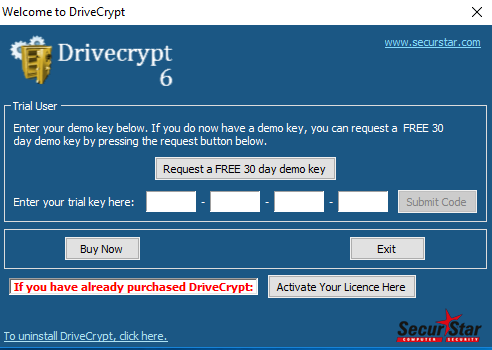
Open DriveCrypt and wait for the registration window.
Click Activate Your License Here.
DriveCrypt: open licence activation
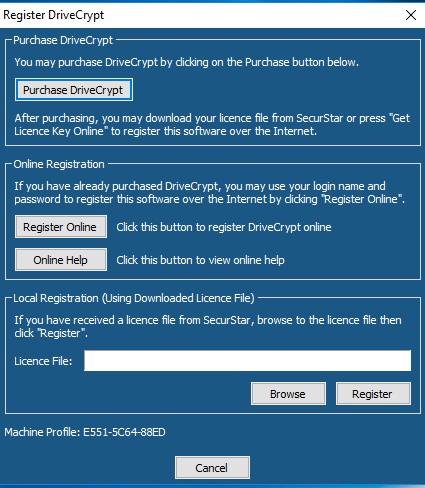
Choose Register Online to register over the internet.
DriveCrypt: choose online or local registration
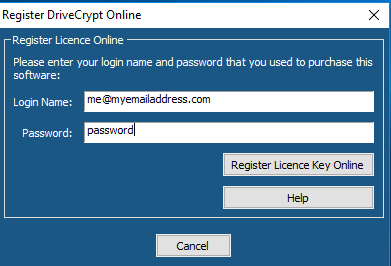
Enter your login name and password and click Register License Key Online.
Select the appropriate order from the displayed order list. Enter a name to identify this computer.
Click Submit. DriveCrypt downloads the registration key from the SecurStar server and registers automatically.
Restart DriveCrypt after registration.
DriveCrypt: register using your account credentials
Register locally with a licence file
Sign in to the customer area and open Key Generator.
Select the product using its selection button and the appropriate order. Choose a registration name.
Copy the Machine Profile displayed by DriveCrypt into Key Generator.
Click Generate and download the generated licence file to your computer.
In DriveCrypt, open Local Registration. Click Browse and select the downloaded licence file.
Click Register to complete registration.
DRIVECRYPT PLUS PACK
Register DriveCrypt Plus Pack
Automatic online registration
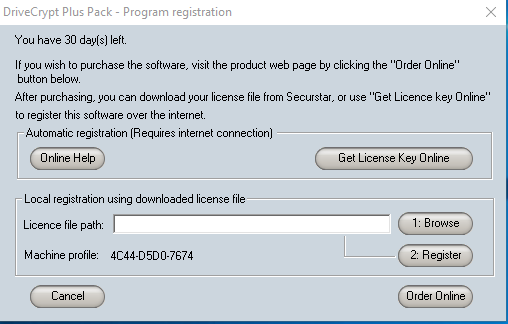
Click Register now.
DriveCrypt Plus Pack: start registration
Choose Get License key online.
DriveCrypt Plus Pack: retrieve licence key online
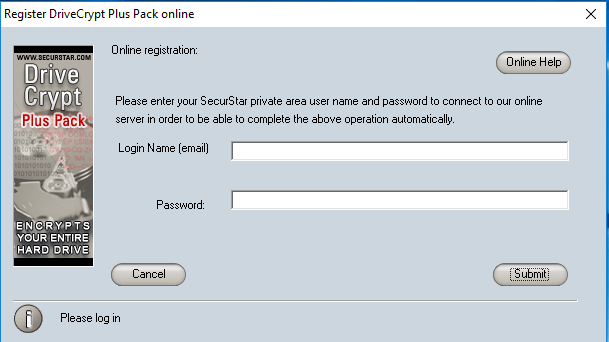
Enter the SecurStar account credentials received after purchase and click Submit.
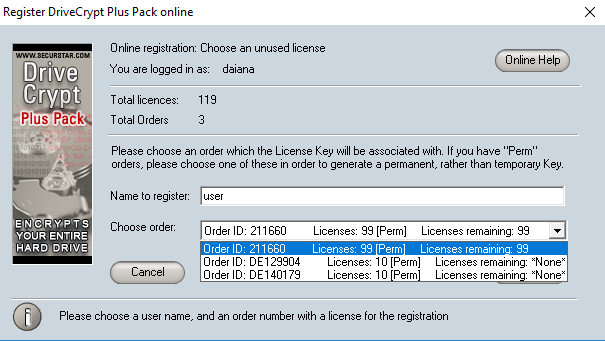
The software displays your orders. Select the order whose licence you want to use.
DriveCrypt Plus Pack: account and order selection
Enter your full name or another registration name in name to register. Click SUBMIT.
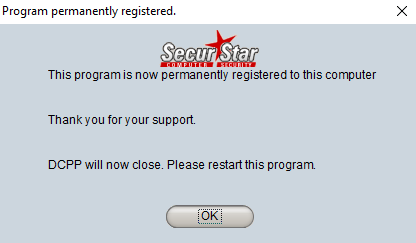
The software downloads the registration key from the SecurStar server and registers your installation.
DriveCrypt Plus Pack: registration completed
SHARECRYPT
Register ShareCrypt
Register online
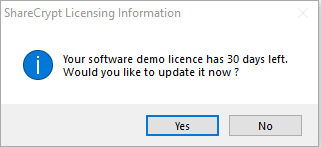
Open ShareCrypt. Choose Yes when asked whether you want to update the demo licence.
ShareCrypt: update the demo licence
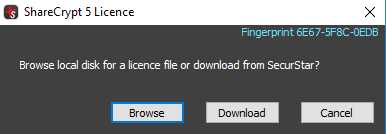
Click Download to register online.
ShareCrypt: download the licence online
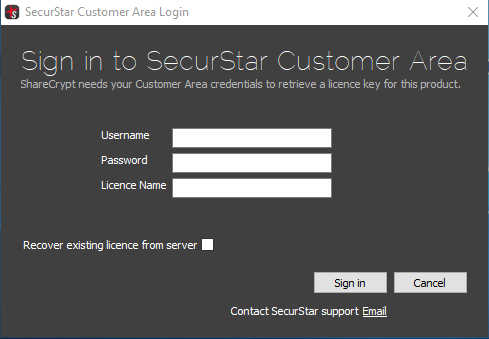
Enter your login and password and click Sign in.
ShareCrypt: sign in to the licence account
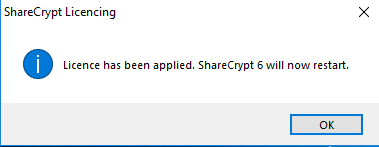
Your available licences are displayed. Click Yes to register this computer.
Essential functions such as the cart are always available. If you agree, we load Google Tag Manager for optional analytics and marketing. Usage data may be sent to Google and cookies may be stored. Without consent, these Google tags remain blocked. Privacy details
You can change your choice at any time using “Privacy settings” in the footer.